Notepad++ plugins
Plugins are extra DLL tools that Notepad++ can load. This independent guide does not host plugin files. Install from Plugins Admin so the copy comes from the project's plugin list.
Notepad++ user manual: plugins
How the plugin system works
A plugin adds commands, usually under the Plugins menu. The editor still runs without them.
The official installer can include a few plugins and can include Plugins Admin. Plugins Admin reads a plugin list maintained for Notepad++. The entries in that list change, so the description inside Plugins Admin is the one to trust for a plugin you install today.
The installer script documents these bundled plugin components: NppExport (copy highlighted text as HTML or RTF), Mime Tools (Base64, quoted-printable, URL encoding, and related transforms), and NppConverter (convert between ASCII text and numeric forms). Leave them selected only if you want them.
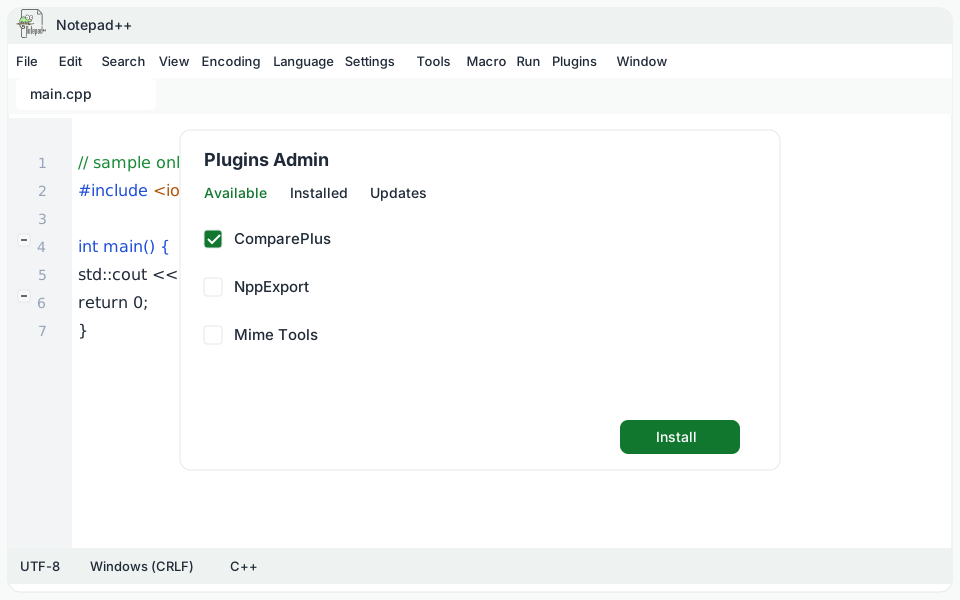
Open Plugins Admin
- Install Notepad++ from the official downloads page, and leave the auto-updater component selected. The installer description says Plugins Admin needs that component.
- Open Notepad++ and choose Plugins, then Plugins Admin.
- Use the Available tab to see plugins you can add. Installed, Updates, and the incompatible list are separate views in the same window.
Install a plugin
- Find the plugin on the Available tab and read its description in the window.
- Tick its checkbox. Selecting only the name shows details and does not arm the Install button.
- Choose Install. Notepad++ copies the plugin and restarts.
- After the restart, open the Plugins menu and use the command the plugin added.
Update, remove, or leave a plugin out
The Updates area of Plugins Admin lists plugins that have a newer copy on the list. The Remove action uninstalls one you no longer want.
You can also clear a plugin's checkbox in the installer if you are setting the program up again.
ComparePlus is a documented file-compare plugin for current Notepad++ versions and can be installed from Plugins Admin when it appears on the Available tab. Comparing two files is not a built-in command. See the compare tutorial before you rely on it.
When a plugin will not install
Windows blocked the copy
Plugins Admin writes under the Notepad++ program folder. If your account cannot write there, close Notepad++ and start it with Run as administrator, then install again. Do this only for the official program you installed.
Plugins Admin is missing
Re-run the official installer and include Plugins Admin and the auto-updater. A portable package may not be set up the same way.
The plugin does not load
Use a plugin build that matches your Notepad++ architecture, such as 64-bit with 64-bit. An incompatible plugin is called out in Plugins Admin. Do not replace notepad++.exe with a file from another site to force a plugin to load.