Independent product guide
Notepad++ — Free and Open-Source Code Editor
A fast, lightweight source code editor for Windows. Explore syntax highlighting, multiple tabs, powerful search tools, plugins, and more.
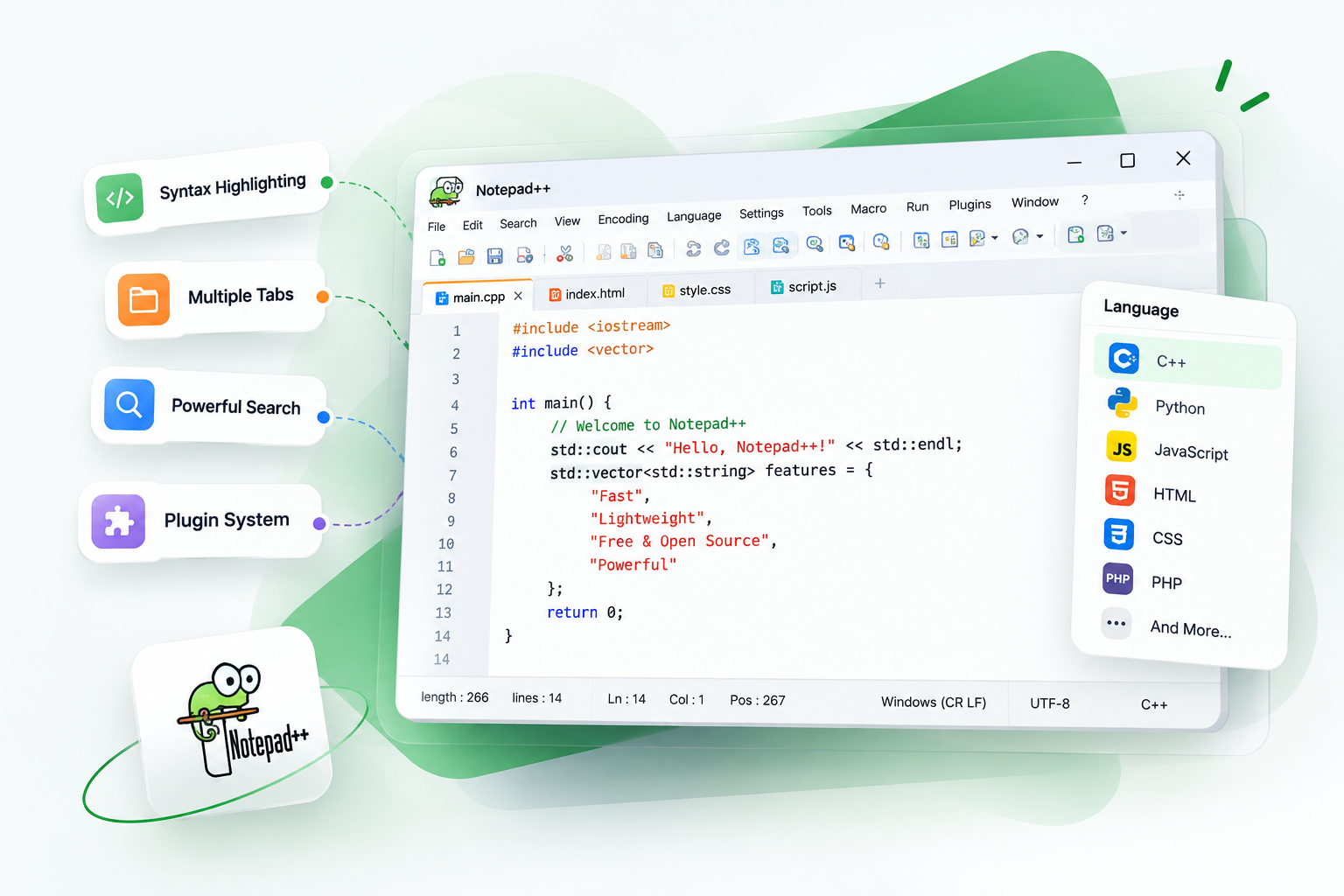
- LightweightA small editor, with no language runtime.
- FreeReleased under GPL-3.0, with no fee.
- Made for WindowsWindows 8.1, 10, and 11 are supported.
- PluginsAdd tools with Plugins Admin.
Core editing tools
Notepad++ edits text and code on Windows. The sections below cover the built-in tools for everyday work: coloring code by language, folding blocks, viewing several files in tabs or a second view, finding and replacing in the current file or a folder, and using Notepad++'s own regular expressions. Plugins are installed from Plugins Admin. The editor theme and window dark mode are set separately. A macro only repeats editor commands. The Encoding menu interprets file bytes, and the menu language is changed in Localization. Coloring and macros do not compile or run code.
Syntax Highlighting
The editor colors a file from its extension, a shebang, or the Language menu. The user manual lists around 90 built-in languages, including C, C++, Java, Python, JavaScript, HTML, CSS, PHP, SQL, and XML. You can add a user-defined language when a file type is missing. Files over 200 MB skip highlighting by default; that limit is under Settings, Preferences, Performance.
When to use it
Use it when a long source file is hard to scan. The colors do not compile, run, or check the program.
Code Folding
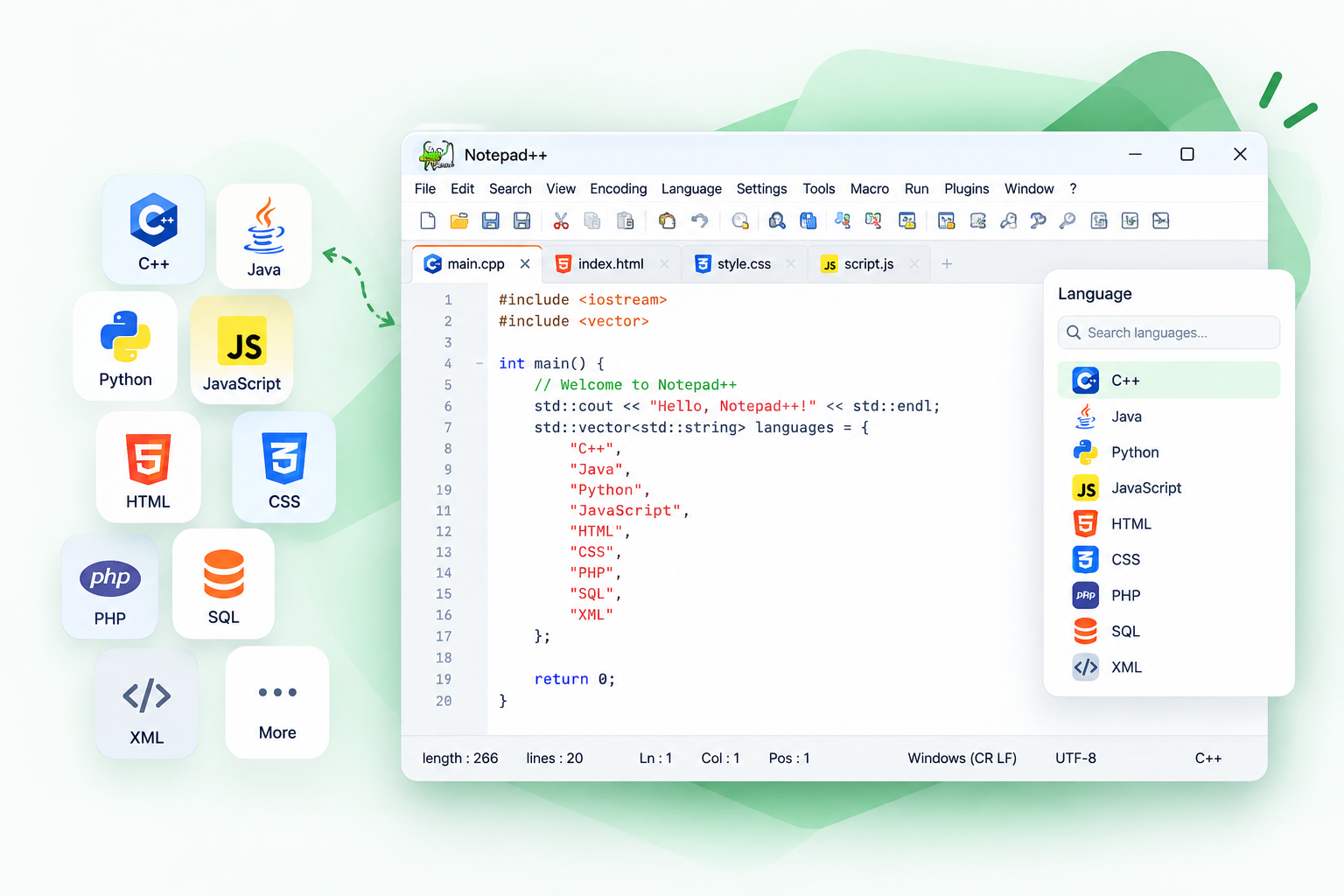
Fold markers in the left margin collapse a block such as a function or a tag. The View menu also folds or unfolds the whole file. Folding only changes what you see.
When to use it
Use it to hide a finished function while you edit the next one.
Multiple Documents
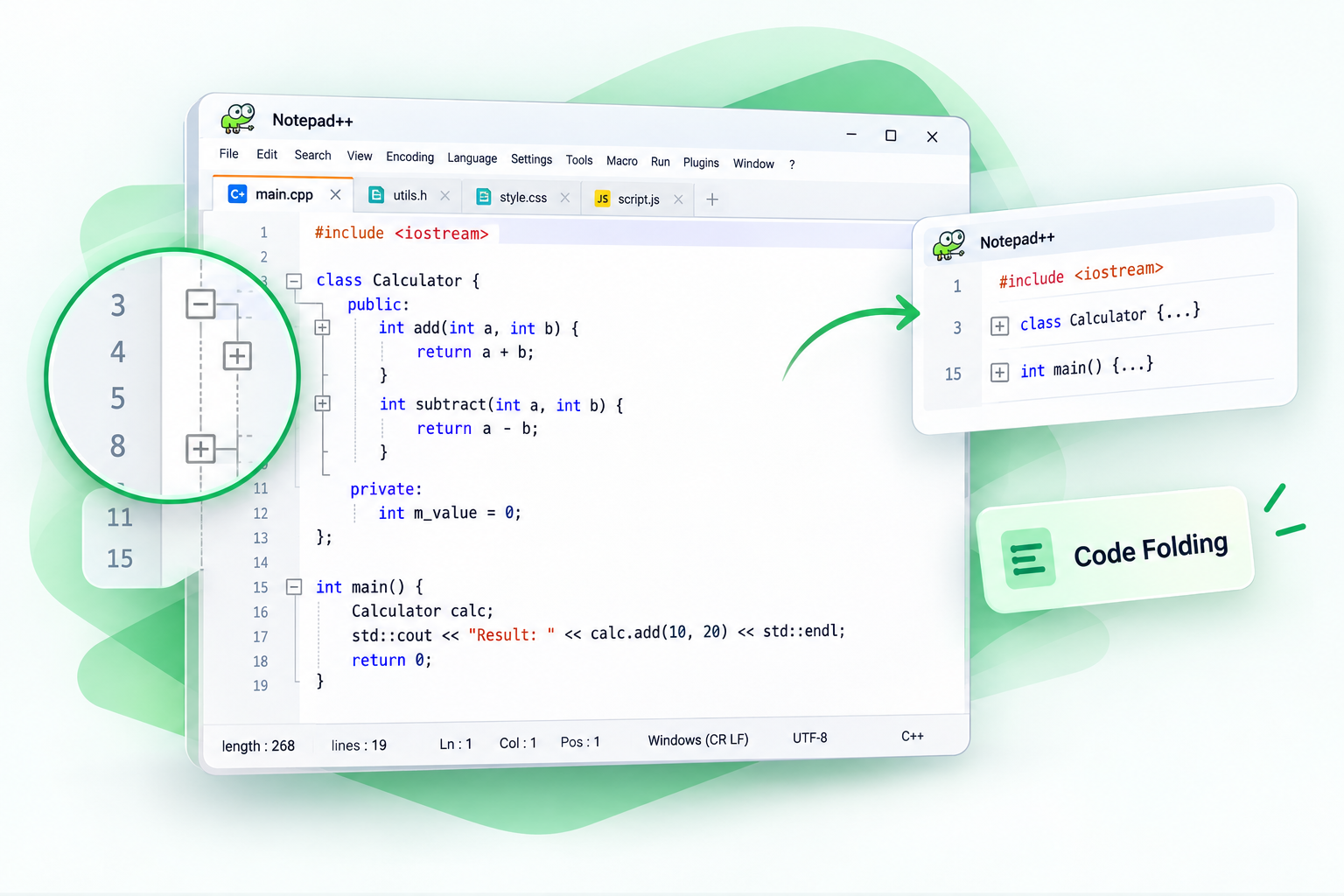
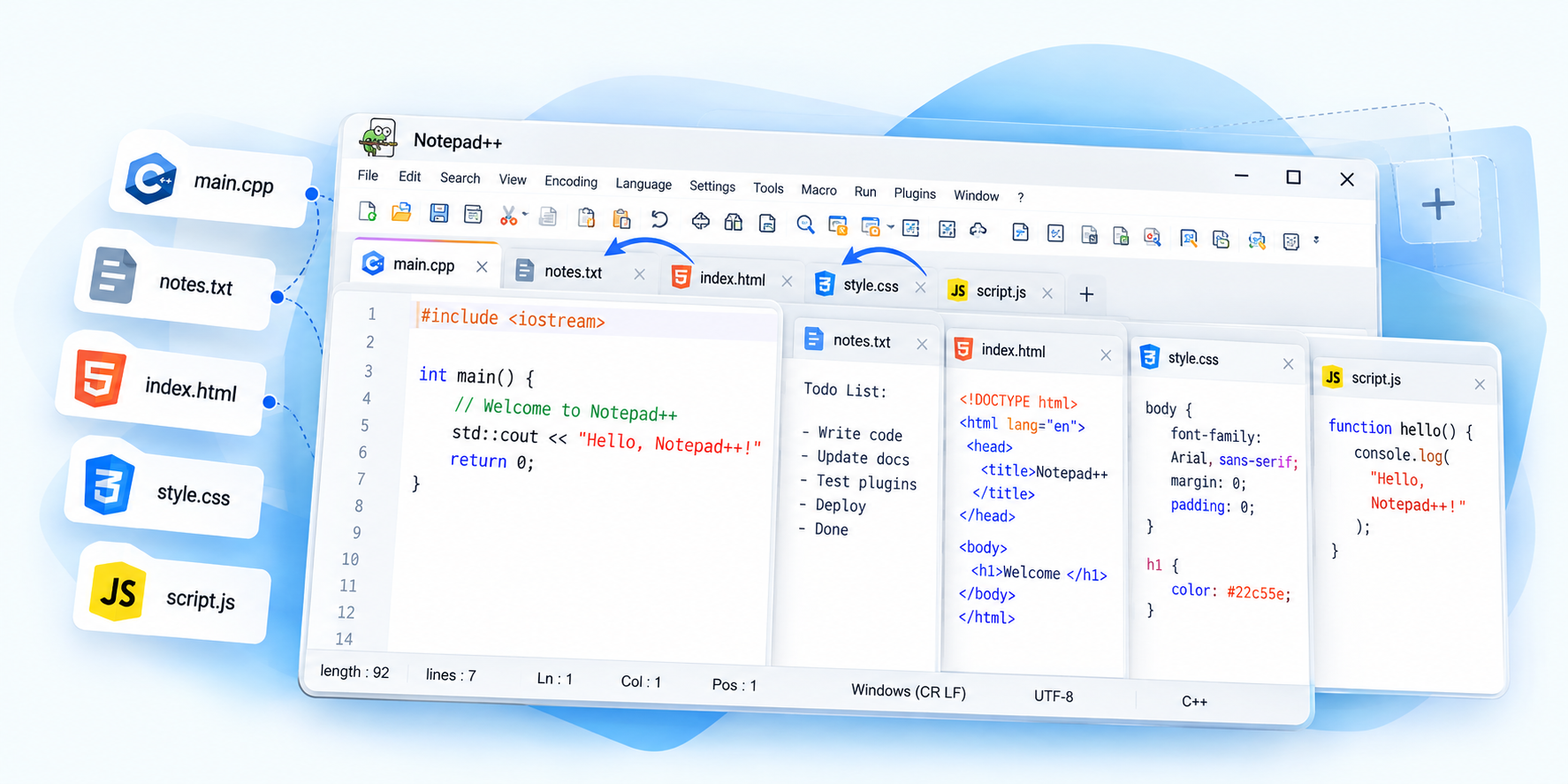
Each open file gets a tab. You can close a tab without closing the program. The View menu can move or clone the current document into a second view so two files sit side by side.
When to use it
Use a second view when you want a header and a source file visible together.
Search and Replace
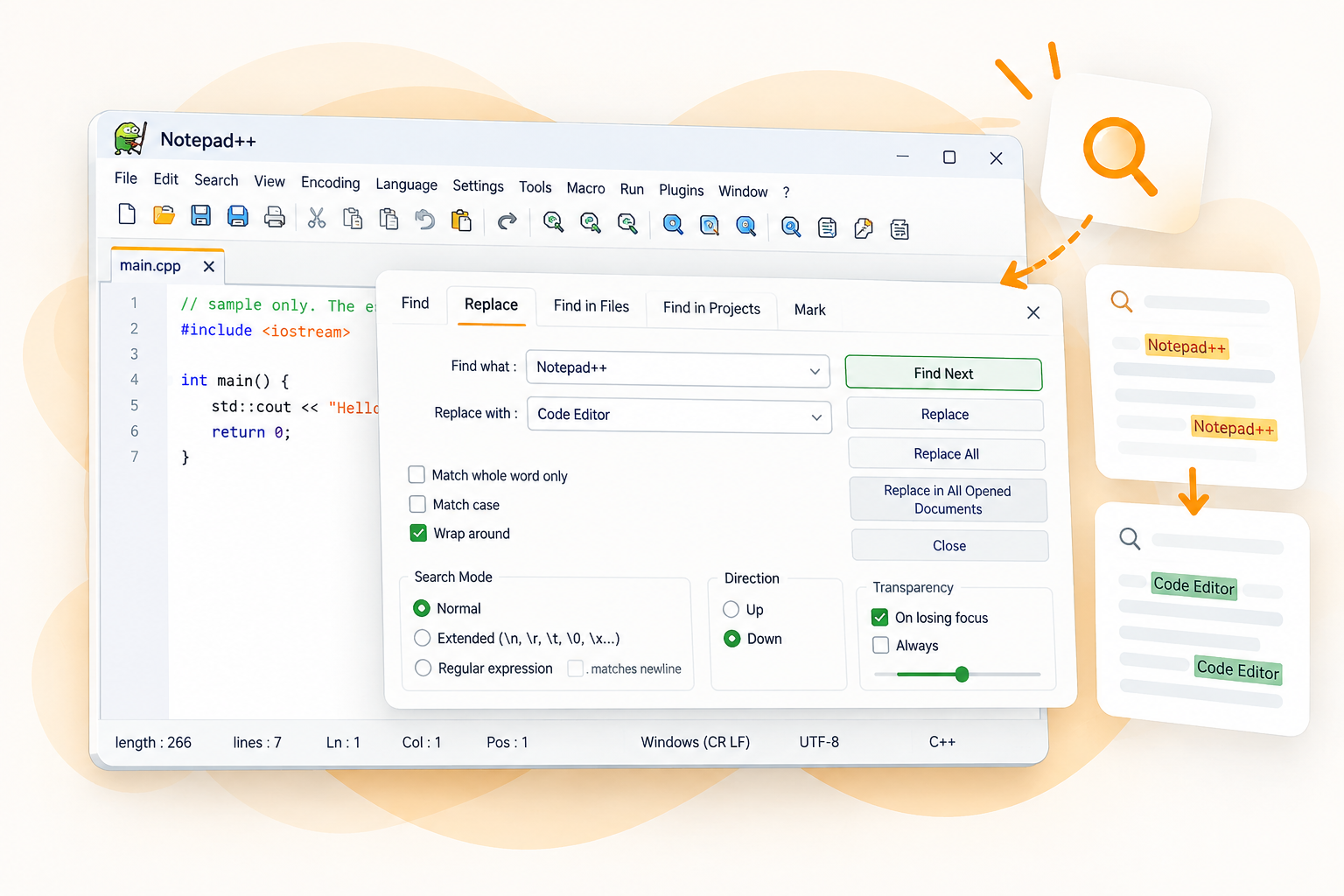
Search, Find opens the find dialog (Ctrl+F). Search, Replace opens replace (Ctrl+H). Search, Find in Files looks through a folder. The dialog in your version shows the button labels to use.
When to use it
Use replace when the same string should change in one file, then read the result before you save.
Regular Expressions
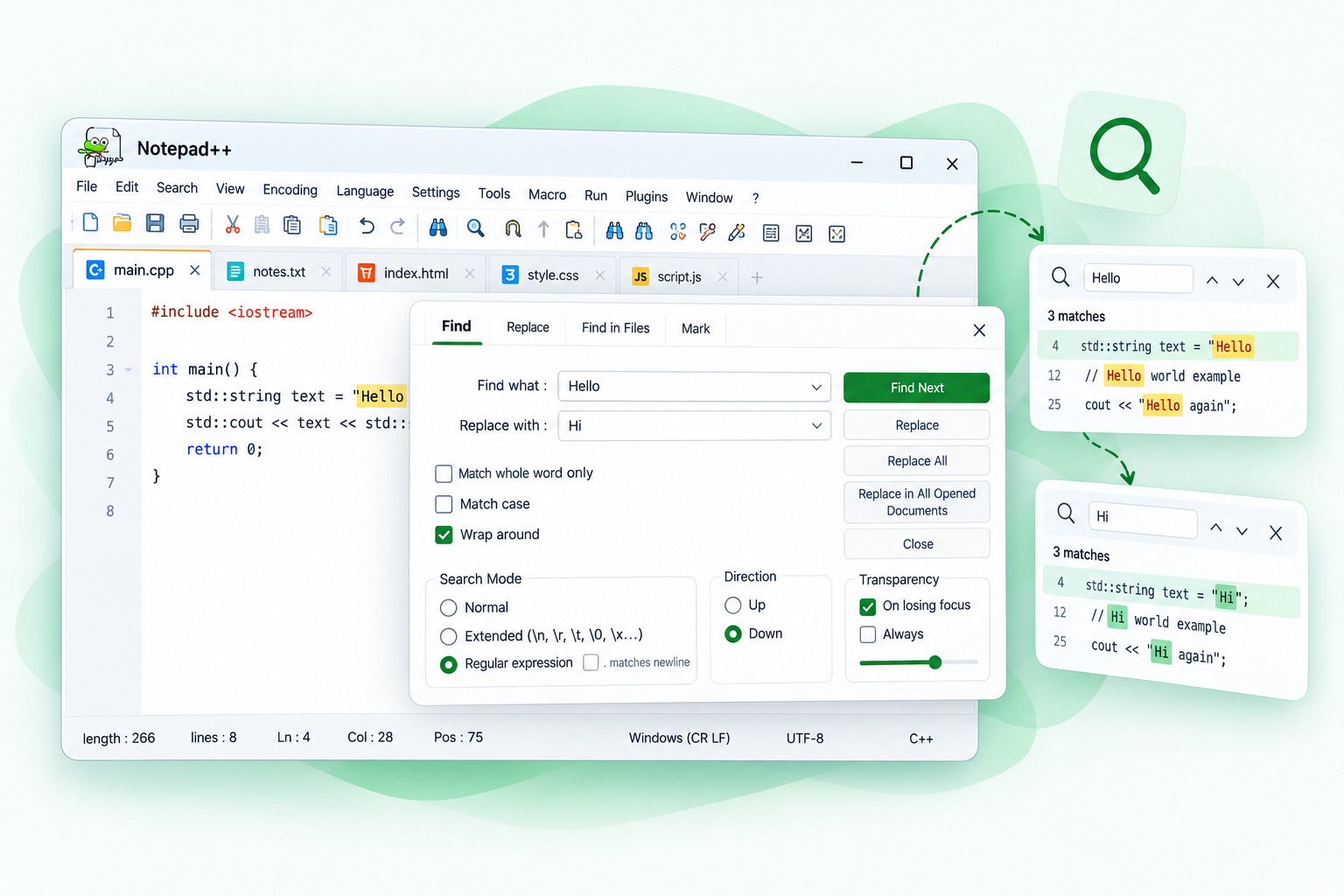
The find dialog has a Regular expression search mode, next to Normal and Extended. The pattern language is the one Notepad++ implements. A pattern copied from another tool may need changes before it matches.
When to use it
Use it for structured text, such as lines that start with a date, and test on one file first.
Plugin Manager
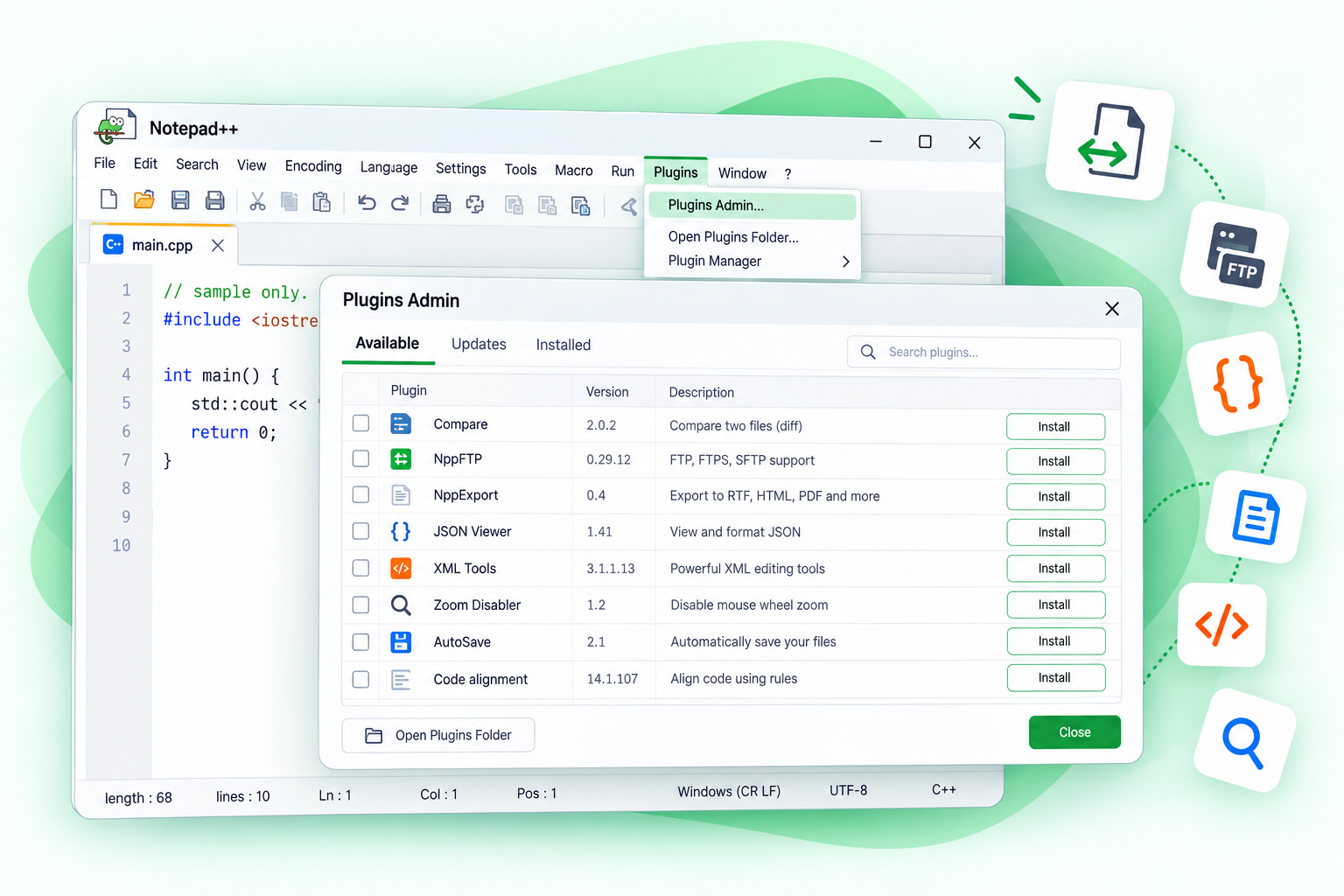
Plugins Admin is the built-in installer for plugins that are on the project's plugin list. Open Plugins, then Plugins Admin, tick the checkbox on the Available tab, and choose Install. Clicking only the name shows information and does not select the plugin. The program restarts after an install.
When to use it
Use it to add a tool such as file compare without downloading a random DLL.
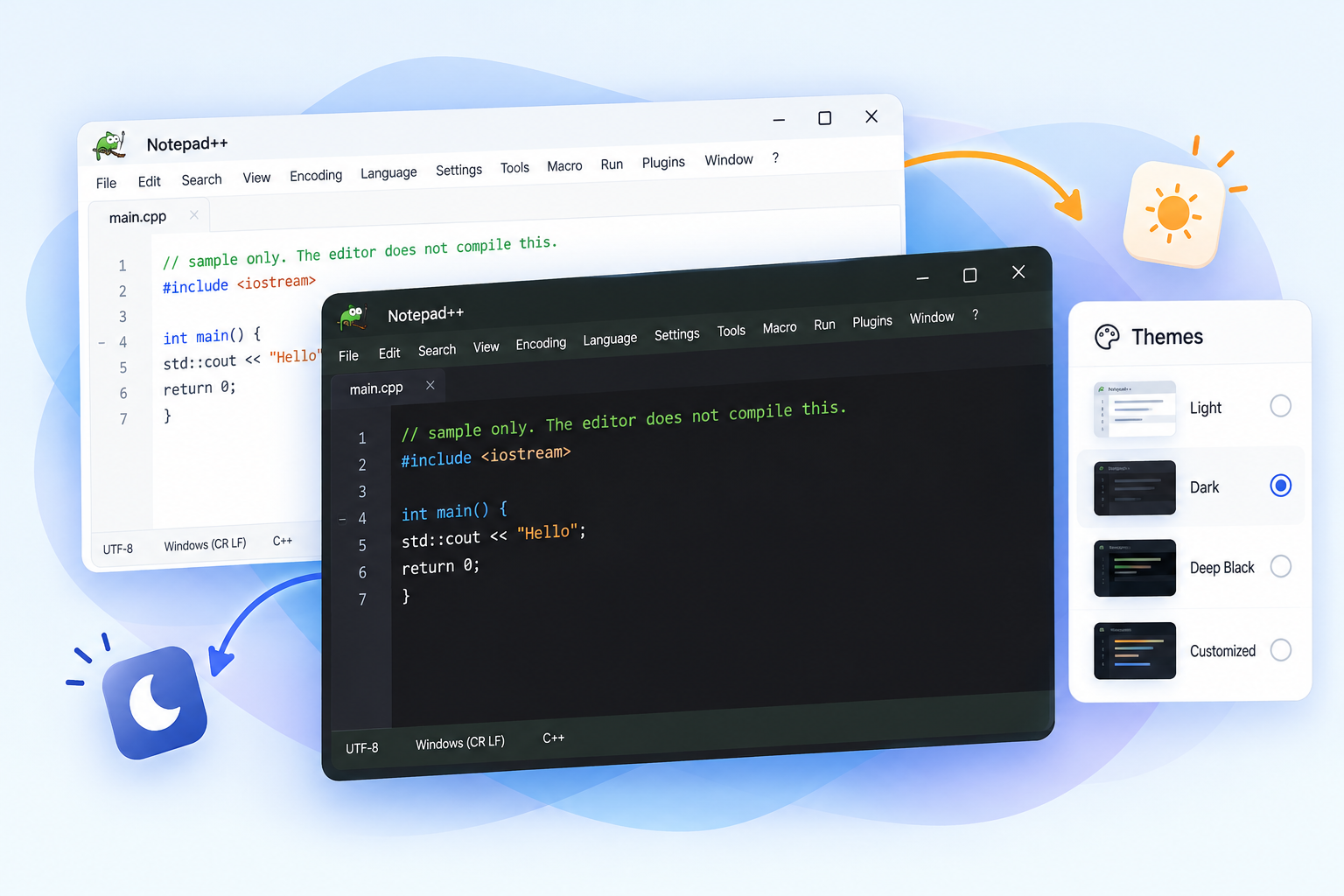
Customizable Themes
Settings, Style Configurator chooses the editor theme. Settings, Preferences, Dark Mode chooses Dark Mode, Light Mode, or Follow Windows for the application chrome. Turning on dark mode selects your previous dark editor theme. User-defined language colors do not change automatically.
When to use it
Use dark mode for the window, then adjust a language theme if its colors clash.
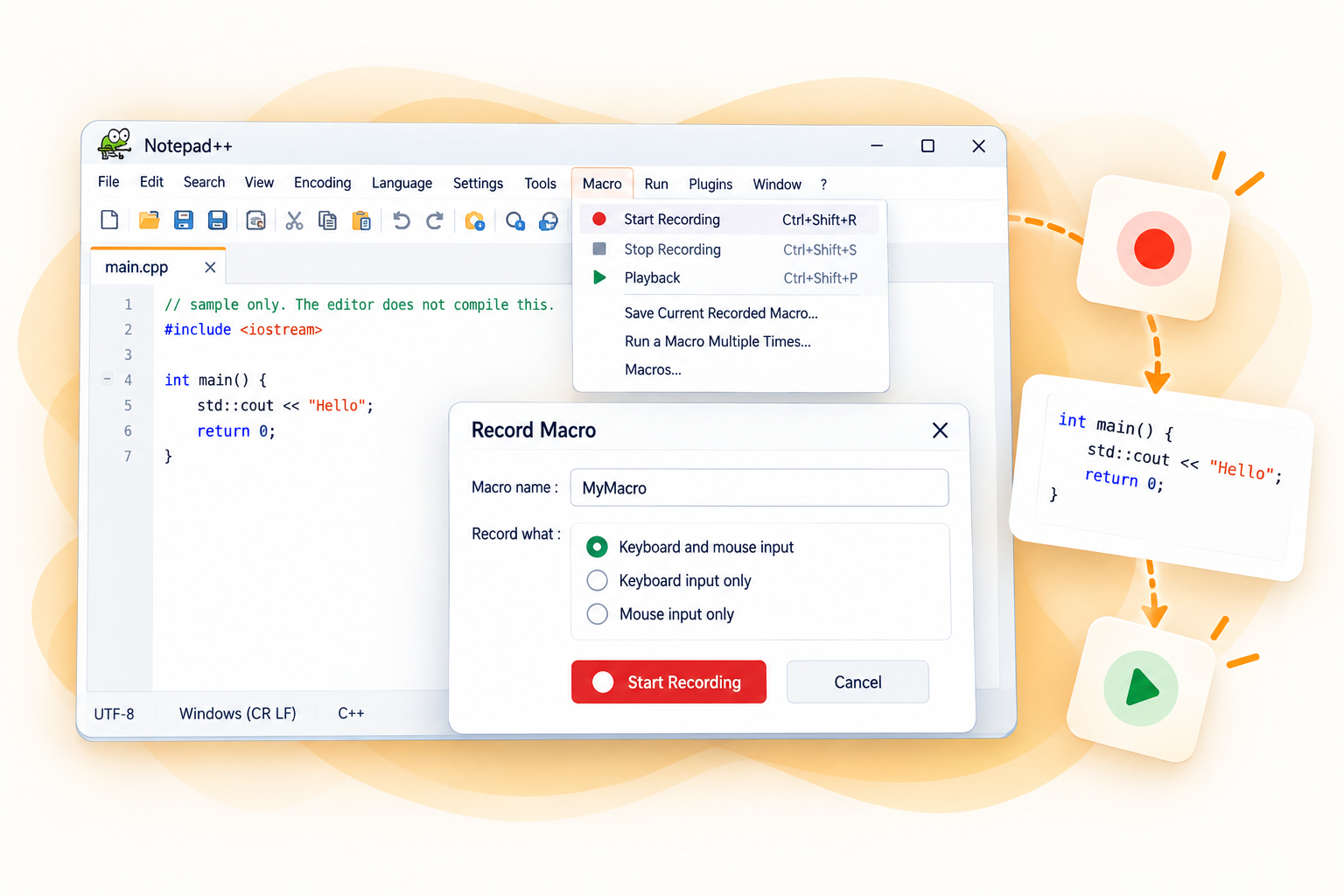
Macro Recording
The Macro menu can start recording, stop recording, play the recording back, and save the recorded macro. A macro repeats editor commands. It does not become a compiler or a build system.
When to use it
Use a short macro for a text cleanup you repeat, and try it once on a copy of the file.
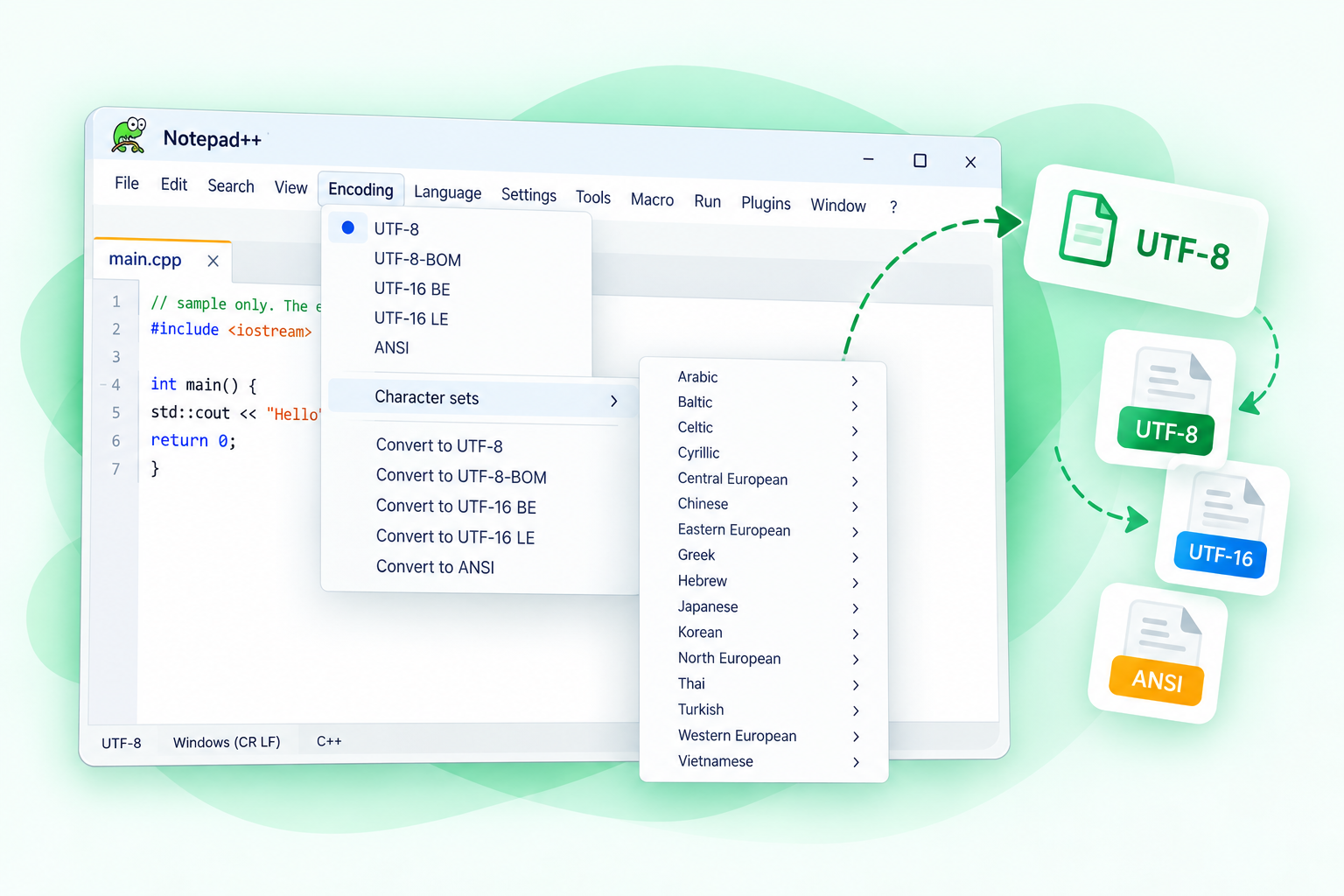
Encoding Support
The Encoding menu sets how the bytes of a file are interpreted, including UTF-8 and other character sets, and it can convert a file. That menu does not translate the Notepad++ interface.
When to use it
Use it when punctuation looks wrong, or when a file must be saved as UTF-8 for another tool.
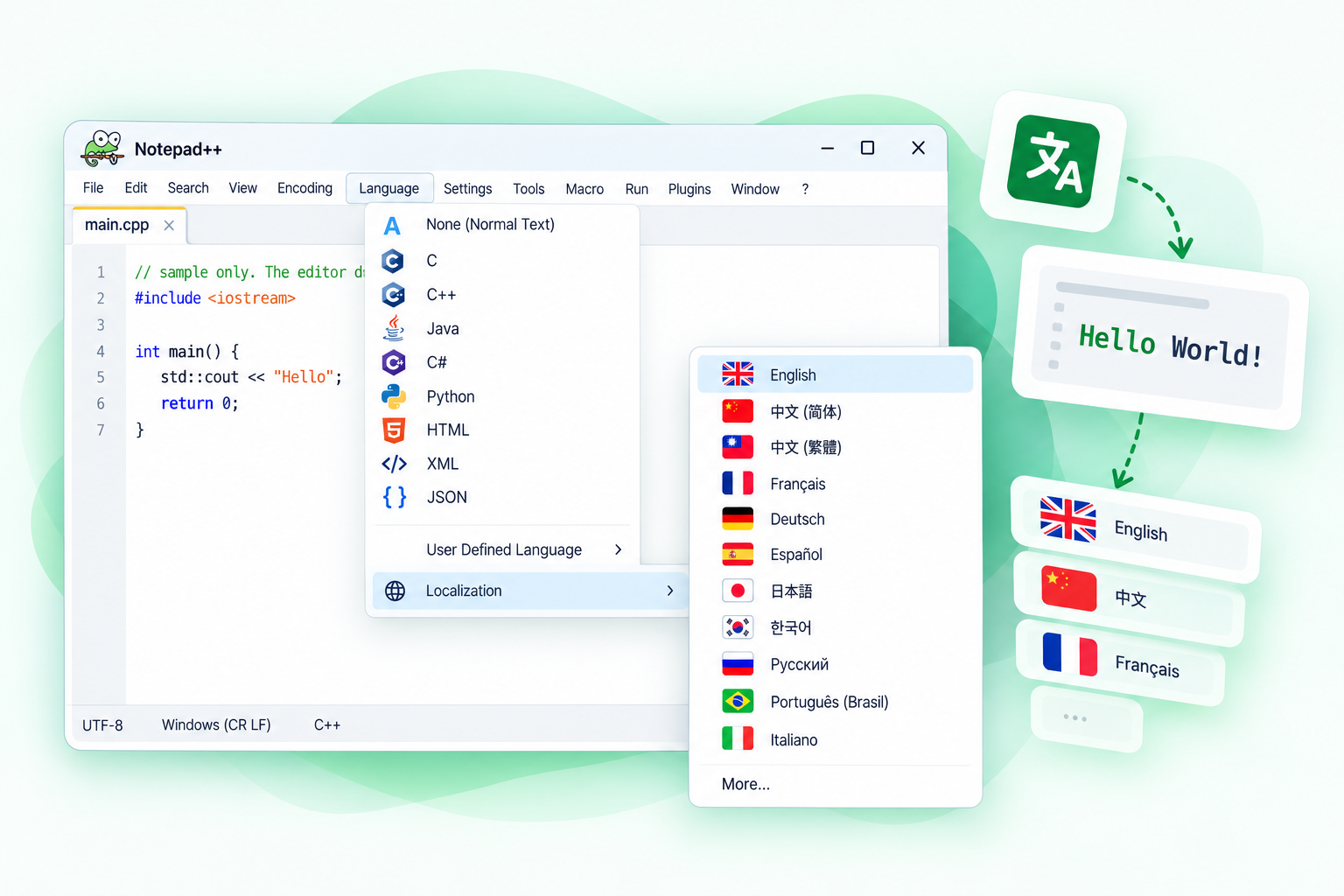
Multi-language Interface
The installer can add localization files. Settings, Preferences, General, Localization then switches the menus and dialogs. The file you are editing stays in its own encoding.
When to use it
Use it when you want the menus in Chinese, English, or another language the installer provided.
File types with syntax colors
Notepad++ can color these common file types, among about 90 built-in languages listed in the user manual.
- C
- C++
- Java
- Python
- JavaScript
- HTML
- CSS
- PHP
- SQL
- XML
Get Notepad++
This button downloads the 8.9.8.1 64-bit installer. This site does not host the file.
Download the 8.9.8.1 installerCommon questions
Short answers. The FAQ page has the same topics with a few extra cases.
Is Notepad++ free?
Yes. Notepad++ is free of charge. The project distributes it under the GPL-3.0 license, and the official downloads page does not ask you to pay or register.
Is Notepad++ open source?
Yes. Notepad++ is open-source software under GPL-3.0. Don Ho and other contributors develop it. This website is not part of that project.
Does Notepad++ work on Windows 11?
Yes. The project's supported-system list includes Windows 11, along with Windows 10 and Windows 8.1. Windows 7 and Windows 8 can run a current build but are not supported.
Is Notepad++ available for macOS?
No official macOS or Linux build is published on the Notepad++ downloads page. The application is a Windows program. This site does not offer an unofficial port.
How do I install Notepad++?
The download button on this site starts the 8.9.8.1 64-bit installer. For a 32-bit, ARM64, or portable package, open https://notepad-plus-plus.org/downloads/. This site does not host those files.
How do I install plugins?
In Notepad++, open Plugins, then Plugins Admin. On the Available tab, tick the plugin's checkbox and choose Install. Notepad++ restarts afterward. Plugins Admin needs the auto-updater component from the installer.
How do I change the language?
The menu language is separate from file encoding. If the installer included localization files, open Settings, Preferences, General, and choose Localization. File encoding is changed from the Encoding menu.